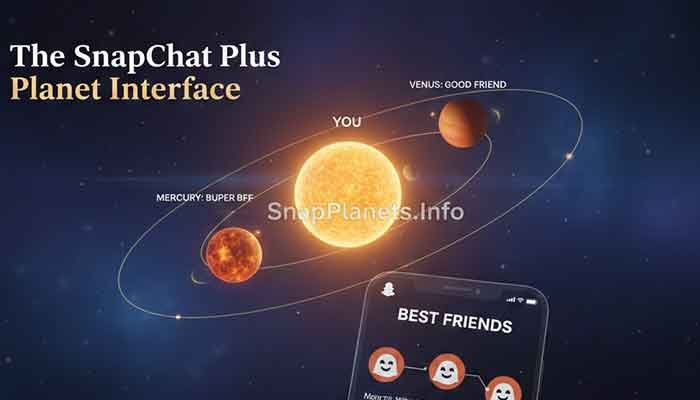
Hey there! I’m Martin, and if you’re like me, you probably live on Snapchat. Between keeping up with streaks and obsessively checking where my friends land in my Solar System, I spend more time in the app than I’d like to admit.
But let’s get real for a second. There is nothing more frustrating than paying for a Snapchat Plus subscription only to have the features look like they were rendered on a toaster. Specifically, when those Snapchat planets blurry or just flat-out refuse to load, it totally kills the vibe. You’re trying to see if you’re still your crush’s Mercury, and all you get is a pixelated blob.
I’ve spent the last few days digging into why this happens and how to fix it so you can get back to your social orbiting in high definition. Grab a coffee, and let’s dive into the “Planet Problem.”
My Personal Experience with Blurry Snapchat Planets
A couple of weeks ago, I was sitting at my local cafe, trying to show a buddy how the Friend Solar System works. I opened up my Best Friends list, tapped on the “Best Friends” badge, and… nothing. Or rather, something that looked like a smudge of orange paint where Mars should have been.
Honestly, I was annoyed. I’m paying for the Plus features, right? I tried restarting the app, but it stayed the same. It wasn’t just my connection; it was like the app had “forgotten” how to render the high-res icons. After some trial and error—and a bit of light frustration—I realized my app cache was absolutely bloated with temporary data from months of viewing high-res Lenses. One deep clean later, and boom: Mercury was back in its shiny, red-heart-filled glory. That’s when I realized most people probably don’t know that the “planets” are actually heavy graphical assets that need a clean environment to load properly.
Read More: See Hidden Snapchat Planets: Martin’s 2026 Bypass Guide
Why are the Snapchat Planets Blurry?
When you see the Snapchat planets blurry, it usually boils down to how the app handles “assets.” Snapchat doesn’t store every single planet icon permanently on your phone’s storage to save space. Instead, it downloads them on the fly.
Common Culprits for Graphics Issues:
- Corrupted App Cache: This is the #1 reason. Your phone saves “shortcuts” to images to load them faster, but if that shortcut gets corrupted, the image looks like a mess.
- Slow Data Connection: If you’re on a weak 5G or spotty Wi-Fi, the app might load a low-resolution placeholder instead of the full graphic.
- Outdated App Version: Snapchat rolls out “backend” changes to the Solar System icons constantly. If your app is old, it might be trying to load assets that no longer exist on the server.
- Low Power Mode: Many phones throttle graphical performance when the battery is low, leading to planet icons not loading correctly.
Step-by-Step Fix for Snapchat Plus Graphics
If you’re staring at a blurry Neptune, don’t panic. Follow these steps in order—they’re the same ones I used to fix mine.
1. The “Magic” Cache Clear
This is the holy grail of Snapchat fixes. It doesn’t delete your memories or chats; it just wipes the “temporary” junk.
- Tap your Bitmoji in the top left.
- Hit the Gear Icon (Settings) in the top right.
- Scroll down to Privacy Controls.
- Tap Clear Data and then Clear Cache.
- Confirm and let the app restart.
2. Force the Asset Re-download
Sometimes the app thinks it has the planet icon loaded, but it’s stuck.
- Toggle the Feature: Go into your Snapchat+ settings and turn the “Solar System” toggle OFF, wait ten seconds, and turn it back ON. This forces the app to re-verify your subscription status and fetch the icons again.
3. Check Your Storage
Have you ever felt like your phone is crawling because it’s at 99% capacity? If your phone has no “breathing room,” it won’t download the high-res planet assets. Try deleting those 400 blurry screenshots of your cat (we all have them) and see if the planets snap back into focus.
Snapchat Planets: Meaning and Visual Guide
Since we’re talking about fixing these icons, let’s make sure you know what you’re looking at once they’re clear!
| Planet | Rank | Visual Appearance | Meaning |
| Mercury | #1 | Red planet with red hearts | You talk to them the most. |
| Venus | #2 | Yellow planet with pink/blue hearts | Your second-closest bestie. |
| Earth | #3 | Green/Blue with a Moon and hearts | A core member of your circle. |
| Mars | #4 | Red planet with stars and purple hearts | You’re definitely “Best Friend” status. |
| Jupiter | #5 | Orange planet with dark stripes | You snap often, but not daily. |
| Saturn | #6 | Orange planet with a gold ring | A solid friend in the top 8. |
| Uranus | #7 | Green globe with no hearts | You keep in touch sporadically. |
| Neptune | #8 | Deep blue, desolate-looking planet | They just barely made the cut! |
Troubleshooting “Planet Icons Not Loading”
What if they aren’t just blurry, but totally missing? This usually isn’t a graphics glitch—it’s a logic one.
The “Best Friend” Requirement
The Solar System only works for your Top 8 Best Friends. If you’re looking at a profile and don’t see a planet, it’s likely because you haven’t interacted with them enough to land in that elite circle. Remember, the relationship has to be mutual for the “Best Friends” badge to even appear.
The “Friend Solar System” Toggle
Snapchat actually disabled this by default for some users in 2024/2025 due to “social pressure” concerns. If you don’t see the planets at all, go to your Snapchat+ Management screen and make sure the Friend Solar System is toggled ON.
FAQ: What the Community is Asking
Q: Does clearing my cache delete my Snapstreaks?
Martin: Absolutely not! Your streaks, memories, and chats are saved on Snapchat’s servers. Clearing the cache only removes the temporary image files (like those blurry planets) so the app can download fresh, clean ones.
Q: Why is only ONE friend’s planet blurry?
Martin: This usually happens if you’ve recently become best friends with them. The app is still trying to “index” that relationship and download the specific assets for their profile. Give it a bit of time or try the “Force Stop” method.
Q: Can my friends see what planet I am in their Solar System?
Martin: Only if they also have Snapchat Plus! It’s a private feature. You can see your rank in their system, and they can see theirs in yours, but it’s not broadcasted to the world.
Q: I fixed the blurriness, but now the app is laggy. What gives?
Martin: When you clear the cache, the app has to work a bit harder for the first few minutes to re-download everything (Bitmojis, Lenses, etc.). It’ll smooth out once it “rebuilds” its temporary library.
Martin’s Final Tip
If you’ve tried everything—clearing the cache, updating the app, and toggling the feature—and those Snapchat planets are still blurry, try logging out and logging back in. This forces a full “handshake” between your phone and Snapchat’s servers, which usually clears up any weird subscription-based graphics glitches.
Honestly, don’t let a few pixels ruin the fun of the Solar System. It’s one of the coolest parts of Plus, so it’s worth the five minutes of troubleshooting to get it looking sharp.
Would you like me to walk you through how to see your specific rank in a friend’s solar system step-by-step?