
I’ll be honest with you — I almost deleted my Instagram account by accident once. I meant to deactivate it for a weekend detox before a big product launch I was analyzing, and I ended up two taps away from starting a 30-day countdown to permanent deletion. My thumb was literally hovering over the confirm button when I stopped and thought, “wait, do I actually know the difference between these two options?” Turns out, I didn’t. And judging by the messages I get from readers, most people don’t either.
That little scare is basically why I’m writing this. If you’re here because you want to know how to delete Instagram account permanently, or you’re just trying to figure out how to delete Instagram account on iPhone app without losing years of photos by mistake, I’ve got you. I’ll walk through every method — phone, desktop, with or without your password handy — and I’ll tell you exactly what happened when I tested this myself, mistakes included.
Let’s get into it.
What’s the Difference Between Deactivating and Deleting Instagram?
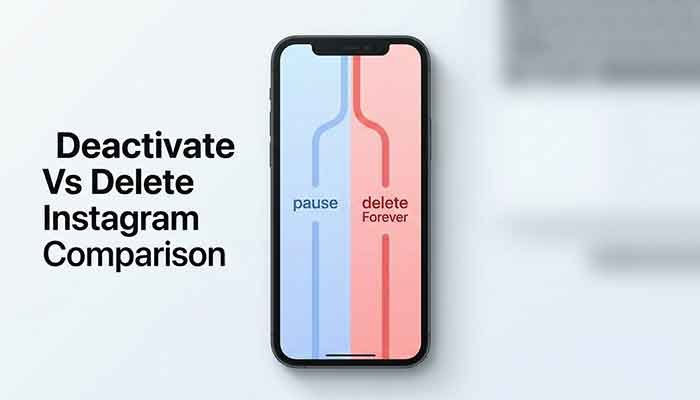
Deactivating hides your profile, photos, and comments temporarily — you can log back in anytime and everything returns exactly as it was, though you can only do this once every seven days. Deleting is permanent: after a mandatory 30-day grace period, your account, photos, messages, and followers are erased for good with no way to recover them.
I know this sounds obvious once you say it out loud, but the confusion happens because Meta buries both options in the same menu now — the Deactivation or deletion screen — so it’s genuinely easy to tap the wrong one if you’re moving fast. I’ve done it. You might too if you’re not paying attention.
Here’s the quick breakdown so it sticks:
- Deactivate: Profile disappears, but nothing is deleted. Log back in whenever, and it’s like you never left.
- Delete: Profile disappears immediately, and after 30 days, everything is gone permanently — no recovery, no support ticket that brings it back.
If there’s any chance you’ll want your account back, deactivating is the safer move. If you’re certain, deletion is what you’re after — and that’s what the rest of this guide covers.
How Do I Permanently Delete My Instagram Account?
You delete Instagram permanently by going to Settings, opening the Meta Accounts Center, navigating to Personal details, then Account ownership and control, and selecting Deactivation or deletion. From there, choose Delete account, confirm with your password, and Instagram begins a mandatory 30-day countdown before your data is erased for good.
This process changed a while back — Instagram moved everything into the Accounts Center, which is Meta’s shared hub for Instagram, Facebook, and Threads settings. Older tutorials that send you to a separate “delete your account” web link are outdated now. Everything runs through this one central spot, whether you’re on the app or a browser.
Before You Start: Download Your Instagram Data
Do not skip this. I mean it. Before you touch the delete button, go grab a copy of everything on your account.
Here’s how:
- Open Settings, then tap Accounts Center.
- Tap Your information and permissions.
- Select Download your information.
- Choose the account, pick what you want (photos, messages, comments, everything), and request the export.
Instagram will email you a download link once it’s ready, usually within a day or so depending on how much content you’ve got. I’ve got almost eight years of posts on my main account, and the export took roughly 18 hours to land in my inbox. If you’ve got a smaller account, expect it faster.
Honestly, I almost skipped this step the first time because I figured “eh, it’s just some vacation photos.” I was wrong — turns out that archive also had years of direct messages I’d completely forgotten about, including a whole thread with an old business contact that ended up being useful months later. Don’t make my mistake.
How to Delete Instagram Account on iPhone App
If you’re on an iPhone, the process happens right inside the app itself. Here’s exactly what to tap:
- Open the Instagram app and tap your profile picture in the bottom right.
- Tap the three-line menu icon in the top right, then tap Settings and privacy.
- Tap Accounts Center near the top.
- Tap Personal details, then Account ownership and control.
- Tap Deactivation or deletion, and choose the Instagram profile you want gone.
- Tap Delete account, then Continue.
- Pick a reason from the list Instagram gives you (this step is required).
- Enter your password to confirm, then tap Delete.
That’s it. Your profile goes invisible to everyone else immediately, and the 30-day clock starts ticking.
How to Delete Instagram Account on Phone (Android)
Good news if you’re on Android — the steps are nearly identical to iPhone, since it’s the same Accounts Center system underneath:
- Tap your profile icon, then the menu icon top right.
- Go to Settings and privacy → Accounts Center.
- Tap Personal details → Account ownership and control.
- Tap Deactivation or deletion, select your account.
- Choose Delete account, pick your reason, confirm your password.
The screens look basically the same across both platforms, which honestly makes this one of the few tech processes where I don’t have to write two totally different guides. Small wins.
How to Delete Instagram Account on Desktop PC
You can delete Instagram from a desktop browser too, though I’ll be straight with you — I’ve found the mobile app or mobile browser tends to be more reliable. Desktop attempts occasionally stall out or redirect you back to your feed for no clear reason, which is annoying if you’re mid-process.
Still, here’s the desktop path:
- Go to instagram.com and log in.
- Click More in the bottom left sidebar, then Settings.
- Click Accounts Center, then Personal details.
- Click Account ownership and control → Deactivation or deletion.
- Select your account, click Delete account, and confirm with your password.
If the desktop version glitches on you, switch to your phone’s browser (not even the app — just Safari or Chrome on mobile) and try the same steps. That’s what worked for me the one time desktop stalled halfway through.
How to Delete Instagram Account Without Password
I want to be upfront here because I’ve seen a lot of guides overpromise on this one: Instagram requires you to confirm your password as part of the deletion flow. There isn’t a legitimate way to permanently delete an account without entering the password at some point in the process.
If you’ve forgotten your password, your actual path is:
- Try logging in and tap Forgot password? to reset it via email, phone number, or Facebook.
- Once you’re back in, follow the standard deletion steps above.
If you can’t access the email or phone number tied to the account either, you’ll need to go through Instagram’s account recovery process first. It’s a bit of a detour, but there’s genuinely no shortcut here — anyone offering a “delete without password” trick that skips this is either wrong or trying to get you to hand over credentials somewhere sketchy. I’d steer clear.
Read More: Instagram Vanish Mode: My Honest, No-Fluff Breakdown
My Personal Experience with Deleting Instagram
Okay, story time. A couple months back, I decided to actually test the full deletion process on a secondary account I use for testing app features (yes, I have a burner Instagram — comes with the territory when you write about this stuff for a living).
I went in expecting the whole thing to feel dramatic, like Instagram would throw up warning after warning trying to guilt-trip me into staying. It didn’t, really. The process was almost too smooth — a handful of taps through the Accounts Center, pick a reason, type my password, done. My profile vanished from search within a couple of minutes. I tested this by having a friend search my username from her own account, and she got the “user not found” result almost immediately.
What actually surprised me was what happened during the 30-day window. I got curious on day 12 and logged back in just to see what would happen — and sure enough, that single login instantly cancelled the deletion. Everything came right back, photos and all, like nothing had ever happened. Nobody warned me how easy it is to accidentally undo the whole process. If you’re serious about leaving for good, you genuinely cannot check in “just to look” during those 30 days. I learned that the hard way, and had to start the whole thing over again to actually finish the test.
The other thing that stuck with me: my downloaded data archive included stuff I’d totally forgotten I’d posted — including a cringeworthy caption from 2019 that I’m honestly relieved is now gone forever. Small silver lining.

Deactivate vs. Delete: A Side-by-Side Comparison
| Feature | Deactivation | Permanent Deletion |
|---|---|---|
| Reversible? | Yes, log back in anytime | No, only within the 30-day window |
| Profile visibility | Hidden immediately | Hidden immediately |
| Frequency limit | Once every 7 days | One-time action |
| Data retained | Fully retained | Erased after 30 days |
| Messages/DMs | Hidden, not deleted | Permanently deleted after grace period |
| Username availability | Stays reserved | May become available (not guaranteed) |
| Good for | Short breaks, burnout | Leaving Instagram for good |
How to Delete a Second Instagram Account
If you run multiple profiles — a personal one and a business or testing account, like me — the Accounts Center handles this cleanly. When you tap Deactivation or deletion, Instagram shows you every profile linked under that Accounts Center, and you select the specific one you want gone. Deleting one account does not touch the others, so your main profile stays completely untouched while you clear out the second one.
One thing worth flagging: if your accounts are linked for cross-posting or shared login, double-check you’re selecting the correct username before confirming. I’ve genuinely seen people select the wrong profile in that list because the names looked similar. Slow down on this step.
Why Can’t I Delete My Instagram Account?
A few things commonly block the deletion process, and honestly, most of them catch people off guard:
- You’re under 18 with parental supervision tools enabled — some accounts tied to family features have extra restrictions.
- You manage a linked business or ad account — you may need to remove yourself as an admin first.
- You’re mid-reset on your password — you can’t confirm deletion without password access.
- You already have a deletion in progress — Instagram won’t let you queue a second request.
Does this sound familiar? If deletion isn’t working for you, check whether one of these applies before assuming something’s broken.
Frequently Asked Questions
How do I permanently delete my Instagram account?
Go to Settings → Accounts Center → Personal details → Account ownership and control → Deactivation or deletion, then choose Delete account and confirm with your password. Your account fully erases after a 30-day grace period.
Can I delete my Instagram account without logging in?
No. You need to log in to access the Accounts Center and confirm deletion. If you’ve lost access, you’ll need to go through Instagram’s password or account recovery flow first.
How long does it take for Instagram to permanently delete an account?
Your profile disappears from public view immediately, but Instagram holds your data for 30 days before permanent erasure, in case you change your mind.
Does deleting Instagram delete all messages and photos?
Yes — once the 30-day grace period ends, your photos, Reels, comments, likes, and direct messages are all permanently erased and cannot be recovered.
How do I reactivate my Instagram account within 30 days?
Simply log back in with your username and password anytime during the 30-day window. This automatically cancels the deletion and restores your account exactly as it was.
Wrapping This Up
Deleting Instagram isn’t complicated once you know where Meta actually hid the button — the trick is understanding the 30-day grace period, downloading your data first, and not accidentally logging back in if you’re serious about leaving.
Martin’s Final Tip: Download your data archive before you do anything else. I don’t care how “done” you feel with the app right now — future you will want that photo of your dog from 2021, trust me.
If this guide saved you a headache, bookmark it for the next time a friend asks how to do this, or drop a comment below with how your deletion went. Ready to make the jump?